Image to Video API: How to Animate Images Programmatically (2026 Guide)
A practical guide to the image to video API: what makes a good source image, how to write motion prompts, which models to use for which job, and working Python code for submitting a job and collecting the clip.
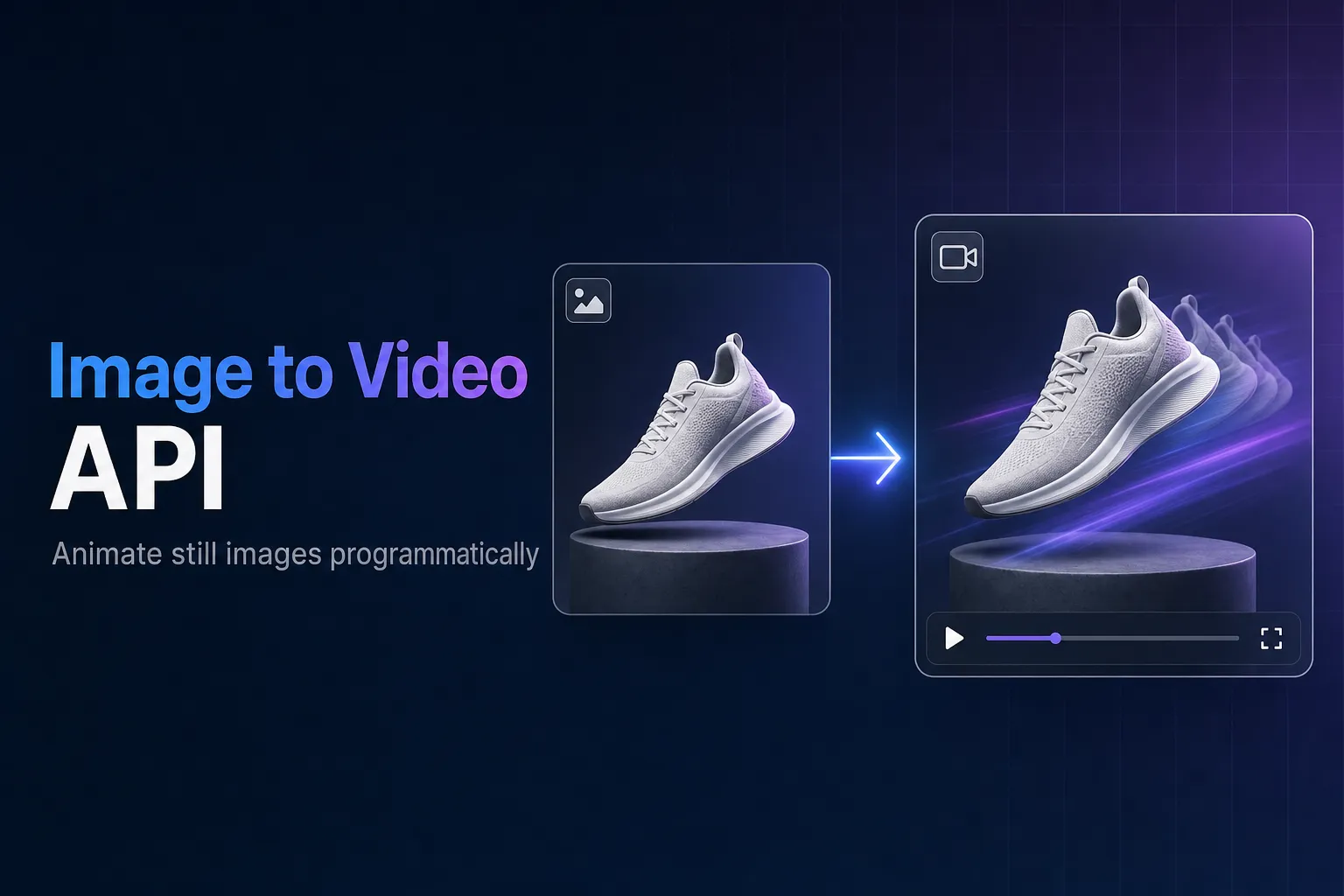
An image to video API takes a still image and returns a short clip that starts from it. Compared with text to video, you give up some freedom (the first frame is fixed) and gain a lot of control: the subject, composition, colors and branding are exactly what you supplied. That makes it the usual choice for product shots, character animation and anything where the look has to match an existing asset.
This guide covers the parts that decide whether the output is usable: the source image, the motion prompt, the model, and the code to run it.
The short version
Send a publicly reachable image URL and a motion prompt to POST /api/v3/{model}/image-to-video, then poll GET /api/v3/status/{id}. Match the image's aspect ratio to the output you want, describe the motion rather than the scene, and keep camera moves and subject moves modest in the same shot.
Preparing the source image
Most bad image-to-video results trace back to the input, not the model.
- Match the aspect ratio. If you want a 16:9 clip, send a 16:9 image. When the shapes differ, the model has to crop or invent the missing area, and the first frame no longer matches your image exactly. Pad (letterbox) the image yourself when the edges must stay intact, as with product photos; crop it when they do not matter.
- Use a clean, well-lit subject. Motion amplifies problems. Blurry edges, heavy compression and cluttered backgrounds turn into flicker once animated.
- Make it publicly reachable. The API downloads the image from the URL you send, so it must be accessible without authentication. JPG, PNG, WebP and GIF are accepted. A pre-signed URL from your storage bucket works well.
Writing the motion prompt
The image already defines the scene, so the prompt should describe what moves and how:
- Name the motion of the subject: "she turns her head toward the window and smiles", "steam rises from the cup".
- Name the camera move separately, using film vocabulary: "slow push in", "static camera", "gentle pan left", "orbit around the product".
- Keep it modest. A fast camera move combined with fast subject motion is the most common cause of warped faces and stretched backgrounds. Pick one to emphasize.
- Do not describe things that would contradict the image (a different outfit, a new background). The model has to reconcile the conflict, and usually does so badly.
The prompt is optional on AirCube, but leaving it out hands every motion decision to the model.
Submitting the job
import os
import time

import requests

API_KEY = os.environ["AIRCUBE_API_KEY"]
BASE = "https://aircube.ai/api/v3"
HEADERS = {
    "Authorization": f"Bearer {API_KEY}",
    "Content-Type": "application/json",
}


def animate(model: str, image_url: str, prompt: str, duration: str = "5", resolution: str = "720p") -> str:
    response = requests.post(
        f"{BASE}/{model}/image-to-video",
        headers=HEADERS,
        json={"image": image_url, "prompt": prompt, "duration": duration, "resolution": resolution},
        timeout=30,
    )
    response.raise_for_status()
    generation_id = response.json()["data"]["id"]

    deadline = time.time() + 600
    while time.time() < deadline:
        status = requests.get(f"{BASE}/status/{generation_id}", headers=HEADERS, timeout=30)
        status.raise_for_status()
        data = status.json()["data"]
        if data["status"] == "completed":
            return data["output_url"]
        if data["status"] == "failed":
            raise RuntimeError(f"Generation {generation_id} failed (the charge is refunded)")
        time.sleep(5)
    raise TimeoutError(generation_id)


clip_url = animate(
    "kling-v3.0-pro",
    "https://example.com/products/sneaker-side.jpg",
    "The sneaker rotates slowly on a turntable, static camera, soft studio light",
)
Rendering takes from about 30 seconds to a few minutes, so in a web app return the generation id to the client immediately and do the polling in a background worker. The returned output_url is a signed link valid for 7 days; copy the file to your own storage if you need to keep it.
Choosing an image to video model
Prices are for a 5-second clip at 720p as of October 2026; see pricing for other durations, resolutions and the current numbers.
| Model | API slug | Clip length | Resolution | 5s at 720p |
|---|---|---|---|---|
| Seedance 2.5 | seedance-2.5 | 4–30s | 480p–1080p | $3.50 |
| Seedance 2.0 | seedance-2.0 | 4–15s | 480p–4K | $2.30 |
| Veo 3.1 | veo3.1 | 5–10s | 720p–1080p | $1.20 |
| Luma Ray 2 | luma-ray-2 | 5–10s | 720p–1080p | $1.00 |
| Seedance 2.0 Fast | seedance-2.0-fast | 4–15s | 480p–720p | $0.66 |
| Veo 3.1 Fast | veo3.1-fast | 5–10s | 720p–1080p | $0.60 |
| Kling 3.0 | kling-v3.0-pro | 5–15s | 480p–1080p | $0.50 |
| Wan 3.0 | wan-3.0 | 4–30s | 480p–1080p | $0.50 |
| Wan 2.5 | wan-2.5 | 5–10s | 480p–1080p | $0.50 |
| Seedance 2.0 Mini | seedance-2.0-mini | 4–15s | 480p–720p | $0.47 |
| HappyHorse 1.0 | happyhorse-1.0 | 5–15s | 720p–1080p | $0.40 |
| Hailuo 02 | hailuo-02 | 5–10s | 480p–1080p | $0.30 |
Some rules of thumb:
- Test motion prompts cheaply. Hailuo 02, HappyHorse 1.0 or Seedance 2.0 Mini at 480p or 720p cost well under a dollar per attempt. Lock the prompt there, then render the final version on a stronger model.
- Longer clips from one image. Seedance 2.5 and Wan 3.0 go up to 30 seconds. For other models, see the next section.
- Several reference images. If you need the same character or product across shots, use
reference-to-videoinstead, which accepts up to 9 reference images (supported by the Seedance models, Wan 3.0, Wan 2.6 and Veo 3.1). See the reference media guide.
Going past the model's maximum length
Two options when one clip is not long enough:
- Extend the clip. The Seedance models and Veo 3.1 support a
video-extendtask, which takes an existing video and continues it. - Chain from the last frame. Extract the final frame with FFmpeg (
ffmpeg -sseof -0.1 -i clip.mp4 -frames:v 1 last.jpg), upload it, and use it as the source image for the next clip. The cut is less seamless than an extension but works with any model.
What image formats does the image to video API accept?
JPG, PNG, WebP and GIF, passed as a publicly reachable URL in the image field. The API downloads the file, so links that need a login will fail.
Is the first frame of the video exactly my image?
It starts from your image, but how strictly the first frame matches varies by model, and a mismatched aspect ratio forces the model to crop or extend the picture. Sending the image in the output aspect ratio gives the most faithful start.
Do I need a prompt for image to video?
No, but it is strongly recommended. Without one the model chooses the motion itself. A short description of the subject's movement and the camera move gives far more predictable results.
Which model is best for product videos?
Start with Kling 3.0 or Seedance 2.0 for clean, controlled motion such as turntable rotations and slow push-ins, and test prompts on a cheaper model first. Compare sample outputs in the models catalog before committing.
Animate your first image with the API
One API key for every image to video model in this guide.